
One customer wanted to transfer his Lexus EEPROM data from Autel scanner to Lonsdor K518 Pro. He inserted the SD card into the K518Pro, but failed to identify the device, even restart.
Here eobdtool.co.uk shares the file transfer method.
Step 1: Export data from Autel to a PC via USB disk
i.e. Autel IM508/IM608
Go to Home menu.
Open ES File Explorer ->Scan folder->sdcard folder->Scan folder-> UserData folder
Here is where data exists.
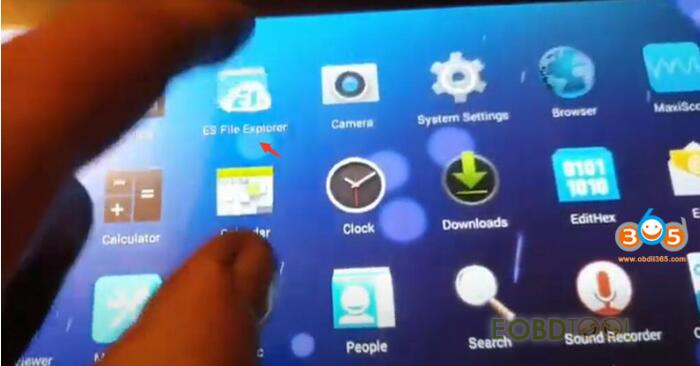
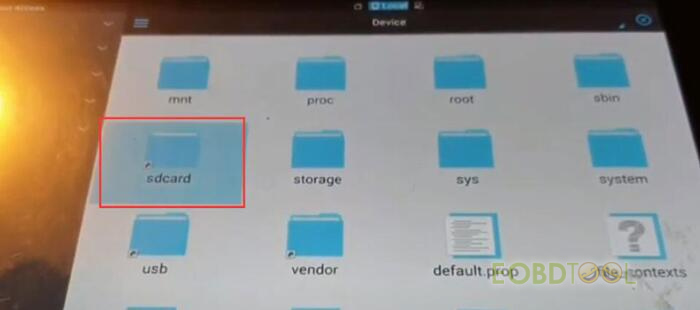
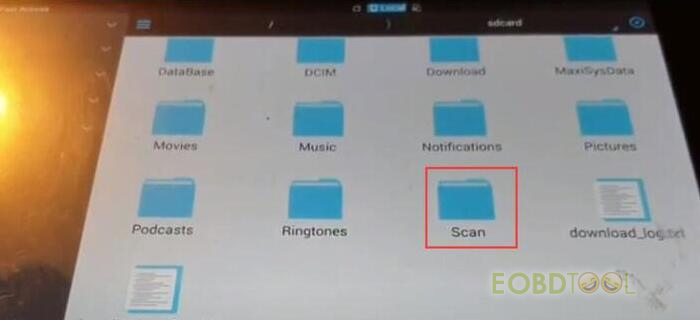
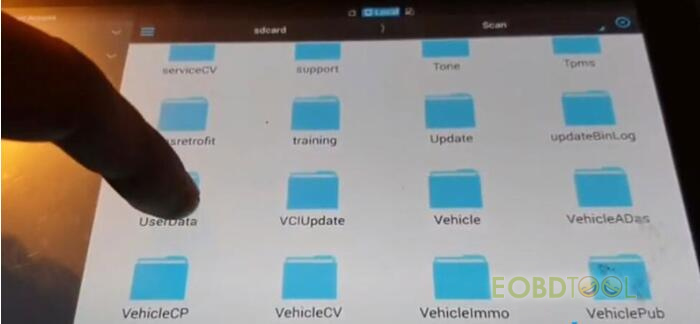
Go to Programmer folder
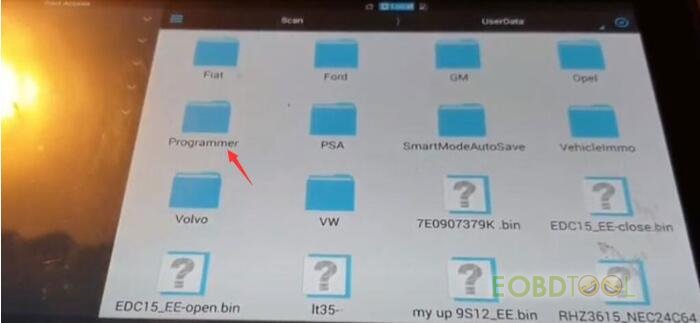
You can see chip data saved.
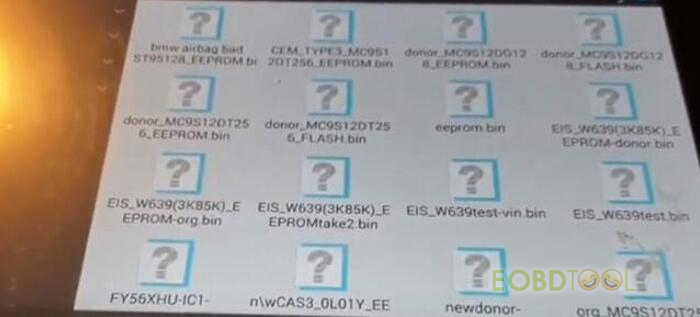
Mount the data you desire to export
Insert USB disk into Autel IM608/IM508
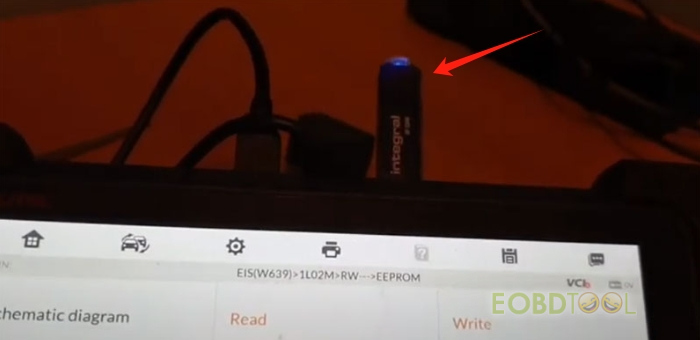
Go to usb folder
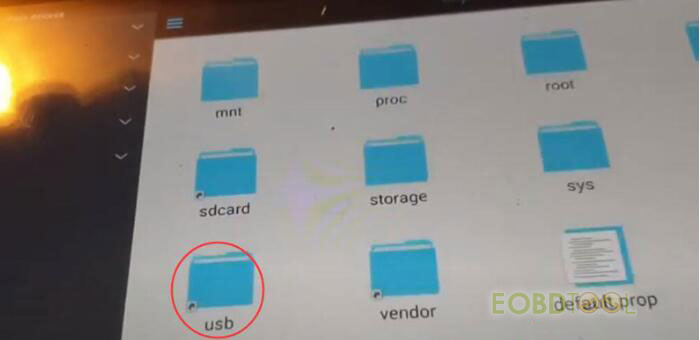
Paste the data here (usb folder)

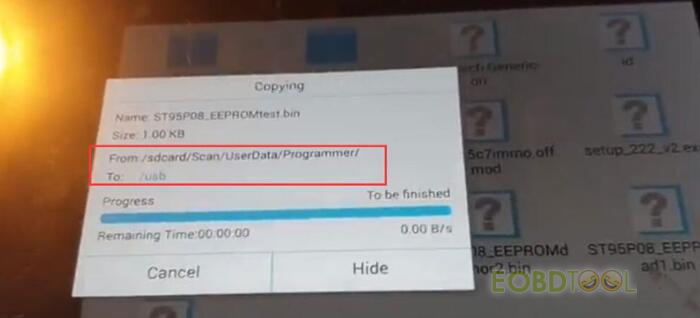
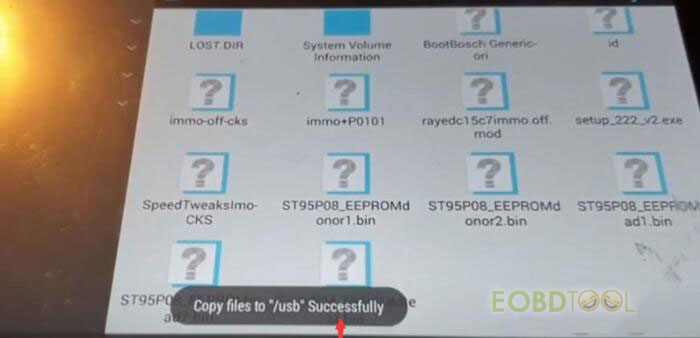
Then insert usb disk to laptop and export data to PC.
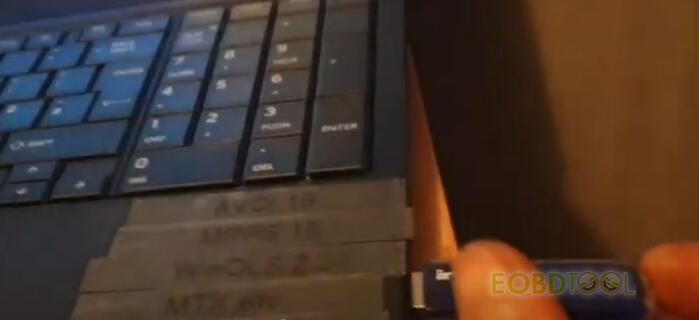
Step 2: Transfer data from PC to K518 Pro via USB cable
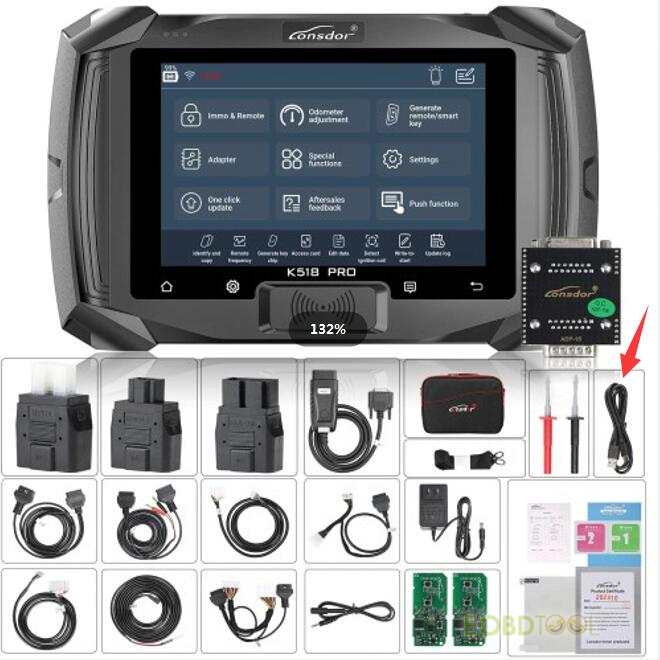
Use the USB cable in the K518Pro package to connect the device and PC
Copy the data desire and paste it to the device directly
Tech support:
Email: sales@eOBDTool.co.uk
WhatsApp: +86 159 7293 3706
Skype: Eobdtool.co.uk
Business Time: Monday - Friday, 8:30am - 6:00pm CST (UTC/ GMT+08:00)